
Does your laptop take several minutes to start? Do apps freeze when you open them, and does the disk usage in Task Manager stay at 100%? In most cases the problem is not the processor. It is the old hard disk drive (HDD).
Replacing an HDD with a solid state drive (SSD) is the most effective upgrade for an older laptop. Boot time, app loading and file copying all become much faster. This guide explains everything you need to know before you buy an SSD in Bangladesh.
Why an SSD Makes Such a Big Difference
A hard disk uses a spinning platter and a moving head to read data. An SSD uses flash memory with no moving parts. That means:
- Much faster boot and shutdown
- Apps and files open quickly
- Windows updates finish faster
- Less noise and less risk of damage from bumps
- Usually lower power use, which can help battery life
Even a laptop with a 6th or 7th Gen Intel processor can feel very usable for office work and browsing once it has an SSD and enough RAM.
SATA vs NVMe: Which Type Do You Need?
This is the most important question, because the wrong type simply will not work in your laptop.
2.5-inch SATA SSD
This SSD is the same size and shape as a laptop hard disk. If your laptop currently has a 2.5-inch HDD, a 2.5-inch SATA SSD is a direct replacement. Almost every laptop with a hard disk bay supports it.
M.2 SATA SSD
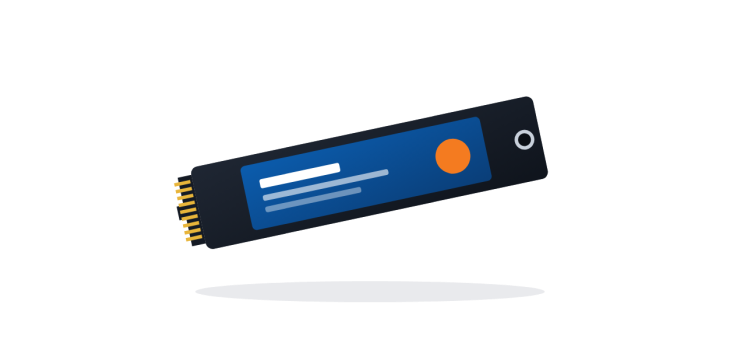
A small stick-shaped SSD that fits in an M.2 slot but uses the SATA interface. Speed is similar to a 2.5-inch SATA SSD. Some older laptops only support M.2 SATA, not NVMe.
M.2 NVMe SSD
Also stick-shaped, but uses the PCIe interface and is much faster than SATA in sequential speed. Most business laptops from around the Intel 8th Gen era onwards support NVMe, but always check your exact model.
| Type | Shape | Speed | Best For |
|---|---|---|---|
| 2.5" SATA | Like a laptop HDD | Fast (SATA limit) | Replacing an old hard disk |
| M.2 SATA | Small stick | Fast (SATA limit) | Laptops whose M.2 slot is SATA-only |
| M.2 NVMe | Small stick | Faster (PCIe) | Newer laptops with NVMe support |
For everyday use, the jump from HDD to any SSD is far bigger than the jump from SATA SSD to NVMe SSD. So do not worry if your laptop only supports SATA; it will still feel much faster.
How to Check Which SSD Your Laptop Supports
- Find your exact model. Look at the sticker under the laptop, or run msinfo32 in Windows and check "System Model".
- Check the manufacturer's specifications or service manual for "M.2 2280 PCIe NVMe" or "M.2 SATA" or "2.5-inch SATA bay".
- Open the back panel (if you are comfortable) and look at the existing drive and slot. M.2 SSDs also come in different lengths, such as 2242 and 2280, so check the length too.
- Ask us. Tell us the model and we will tell you which SSD fits.
256GB or 512GB: How Much Storage?
- 256GB: Enough for Windows, Office, browsers and normal documents. Good for students and office users who keep large files in cloud storage or on an external drive.
- 512GB: Better if you store many photos and videos, install large software like design tools, or do freelancing work with big project files.
- 1TB: For video editors or anyone who keeps everything on one laptop.
Try to keep at least 15 to 20% of the SSD free. A nearly full SSD can slow down.
Which SSD to Buy in Bangladesh
Stick to well-known brands sold through proper channels, and be careful with very cheap no-name SSDs. When comparing, look at:
- Interface and form factor that match your laptop
- Capacity that fits your use
- Brand reputation and seller reliability
- Endurance (TBW) listed by the manufacturer, if available
You can see the SSDs we currently stock in our SSD section. If you are also short on memory, pair the SSD with a RAM upgrade; 8GB is the practical minimum in 2026.
What About Your Data?
When you replace the main drive, you have two options:
- Clone the old drive to the new SSD so everything stays as it is.
- Fresh install of Windows on the SSD, then copy your files back. This often gives a cleaner, faster system.
Either way, back up important files first. If you prefer, our technicians can install the SSD and set up Windows for you. Book a laptop servicing request and we will contact you.
Upgrade or Replace?
If your laptop is very old (for example, 3rd or 4th Gen Intel) or has other problems like a weak battery and broken hinges, a refurbished business laptop that already has an SSD may be better value. Compare prices in our refurbished laptops section before deciding.
FAQs
Q: Will an SSD make my old laptop fast?
A: In most cases, yes. Boot time and app loading improve a lot. If the laptop also has only 4GB RAM, upgrading RAM too gives the best result.
Q: Can I put an NVMe SSD in any M.2 slot?
A: No. Some M.2 slots only support SATA. Check your laptop's specifications or ask us with your model number.
Q: Can I keep my old hard disk as extra storage?
A: Some laptops have both an M.2 slot and a 2.5-inch bay, so you can keep both. Otherwise, you can put the old HDD in an external enclosure and use it as a USB drive.
Q: Do you install SSDs for customers outside Dhaka?
A: Yes, at our Noakhali (Sonapur) branch as well as in Dhaka. You can also order an SSD online with Cash on Delivery.
Get Your SSD Upgrade
Order an SSD online with Cash on Delivery anywhere in Bangladesh, or visit our Agargaon, Dhaka office or Sonapur, Noakhali branch and we will help you choose and install it. Not sure which one fits? Contact us or call/WhatsApp with your laptop model.
Comments
No comments yet — share your thoughts below.